Account Creation Flow
- User enters email address and password.
- Basic registration data is temporarily stored in the system.
- Email confirmation message is sent to the registered email address.
- User confirms email address through the verification link.
- User logs in successfully after email confirmation.
-
If a user attempts to log in without confirming the email address,
the unverified account data will be removed from the system, and the
user must create a new account again using the same email address or
a different email address.
- User completes profile information.
- User selects business location through Google Maps.
- Account setup is completed.
Account Mode Flow
- User creates and confirms account.
- User logs in to B2BC Market.
- User selects required mode.
- Seller Mode enables business selling activities.
- Buyer Mode enables product discovery and purchasing activities.
- User can switch between both modes anytime according to requirements.
Seller Mode - Business Profile Management
After switching to Seller Mode, the account holder enters the seller dashboard
where the business profile is displayed. The seller can manage and update
business information directly from this area without navigating to another page.
Business Profile Update
A simple update button allows the seller to modify business information instantly.
This provides a faster and easier way to maintain an accurate and professional
business presence on B2BC Market.
Seller Can Manage
- Business Name
- Business Profile Image
- Business Background Display Image
- Business Description
Quick Update Process
- Seller switches into Seller Mode.
- Business profile information is displayed automatically.
- Seller presses the update button.
- Seller modifies required business details and images.
-
Updated information is saved and reflected immediately on the business profile.
Purpose
This quick update feature enables sellers to maintain their business identity
efficiently without leaving the seller dashboard, creating a smooth and
user-friendly business management experience.
Seller Mode - Product Creation Process
After completing the business profile, the seller can create new products by
selecting the "Add Product" option. The seller is redirected
to the product creation page where the complete product setup process is managed.
Company and Branch Requirement
Before adding a product, the seller must have at least one company and one
company branch created in the system. Product availability is managed through
company branches; therefore, a product cannot be created without an assigned
business structure.
Creating a company and branch does not require navigating to another page.
The seller can create both directly from the current product creation workflow
using the available options.
Company Creation
If no company exists, the seller can create a company by providing the required
business information. After successful company creation, the seller can continue
with branch creation.
Branch Creation
After creating a company, the seller can create a company branch from the same
workflow. Branch information is required because products are offered through
specific business locations.
Product Basic Information
After company and branch setup, the seller enters the basic product information
and selects the appropriate product classification.
Product Setup Includes
- Product Name
- Product Description
- Category Selection
- Subcategory Selection
- Other required product details
Marketplace Selection
The seller selects where the product will be available in the marketplace.
B2BC Market supports flexible product visibility options:
-
Local Marketplace -
Product is available within the selected local business area.
-
Global Marketplace -
Product is available for worldwide marketplace visibility.
-
Both Marketplaces -
Product is available in both Local and Global marketplaces.
Business Model Selection
The seller selects the selling model for the product according to the target
customer type.
- B2B - Business-to-Business selling model.
- B2C - Business-to-Consumer selling model.
- B2BC - Business-to-Business-to-Consumer selling model.
B2B Minimum Order Quantity Rule
When the seller selects the B2B business model, the product
must have a Minimum Order Quantity (MOQ) greater than one.
This ensures that B2B transactions follow wholesale and bulk purchasing
requirements.
Product Creation Flow
- Seller selects "Add Product".
- Seller enters the product creation page.
- System checks company and branch availability.
- If required, seller creates a company without leaving the page.
- Seller creates at least one company branch.
- Seller enters product basic information.
- Seller selects category and subcategory.
- Seller selects Local, Global, or Both marketplaces.
- Seller selects B2B, B2C, or B2BC business model.
- If B2B is selected, seller provides MOQ greater than one.
- Product creation is completed.
Seller Mode - Product Image Management
After completing product creation and pressing the submit button, the seller is
redirected back to the Seller Dashboard. The newly created product is displayed
as the default product in front of the seller for further setup.
Product Image Requirement
A product must have a minimum of two images before it can be fully prepared for
selling. The seller can add product images by selecting the
"Add Images" button from the product display area.
Adding Product Images
After selecting the "Add Images" option, the seller is redirected to the product
image management page where images can be uploaded.
The seller can add images according to preference:
- Upload multiple images at the same time.
- Add images individually one by one.
Image Classification
After uploading images, the system automatically assigns image priority:
-
Primary Image -
Main product image displayed as the default product representation.
-
Secondary Images -
Additional product images used to provide more product details.
The seller has full control to change the Primary Image and Secondary Images
according to their preference.
Return to Seller Dashboard
After completing image management, the seller can select the
"Back to Page" button. The seller is redirected to the Seller
Dashboard where the updated product is displayed. Once the required product
information, minimum image requirements, and initial stock settings are completed,
the product becomes live on B2BC Market and is available according to the selected
marketplace and business model settings.
Product Image Flow
- Seller submits product creation form.
- System redirects seller to Seller Dashboard.
- Newly created product appears as the default product.
-
System adds a default stock quantity of 1 product
for the newly created product.
- System requires a minimum of two product images.
- Seller selects "Add Images".
- Seller uploads multiple images or adds images individually.
- System assigns Primary and Secondary image status automatically.
- Seller can change image priority manually.
- Seller selects "Back to Page".
- Seller returns to Seller Dashboard.
-
Product becomes live on B2BC Market according to selected settings.
Seller Mode - Live Product Management
After a product becomes live on B2BC Market, the seller can manage and enhance
product information directly from the Seller Dashboard. The seller can perform
different actions using dedicated product management buttons.
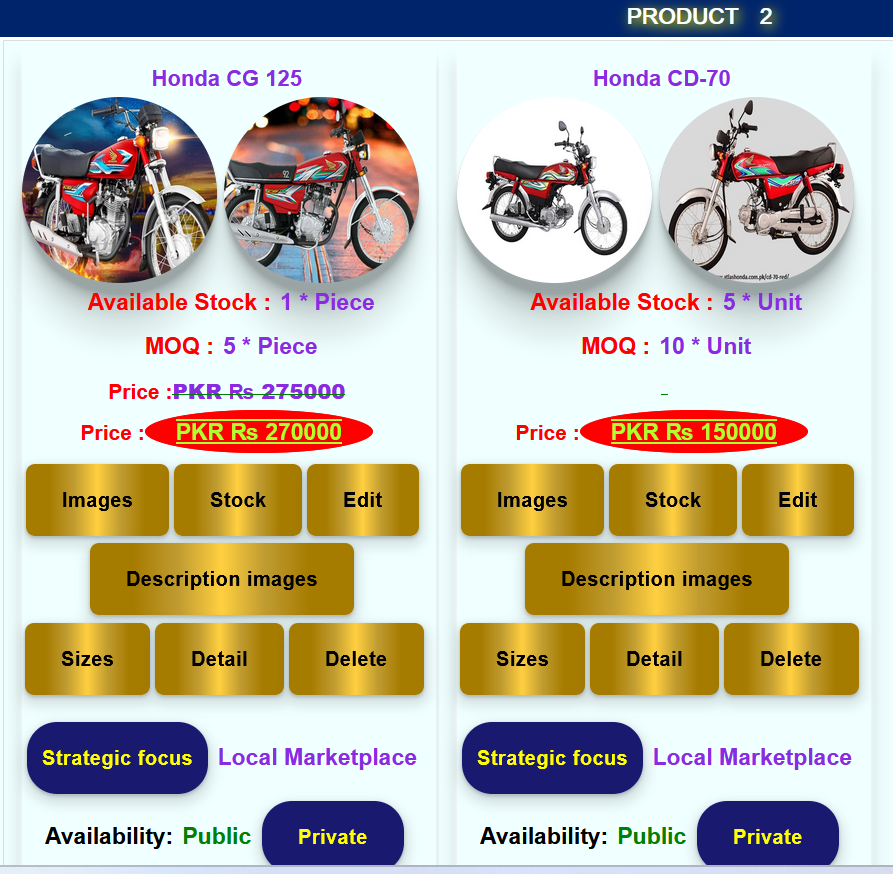
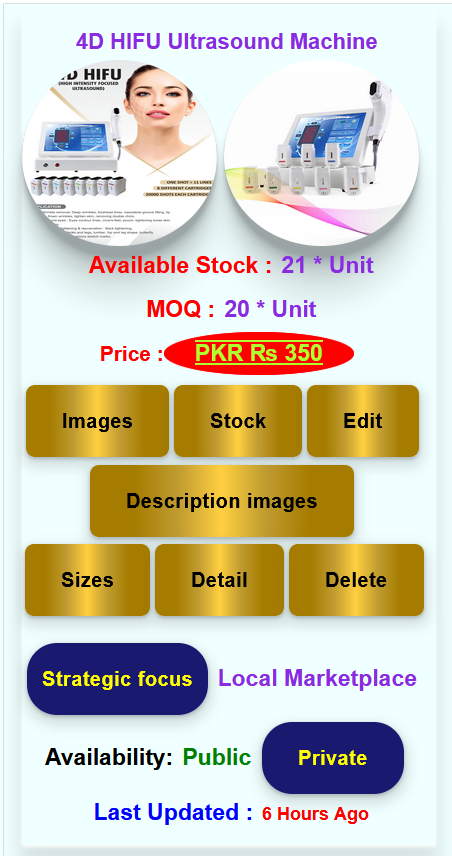
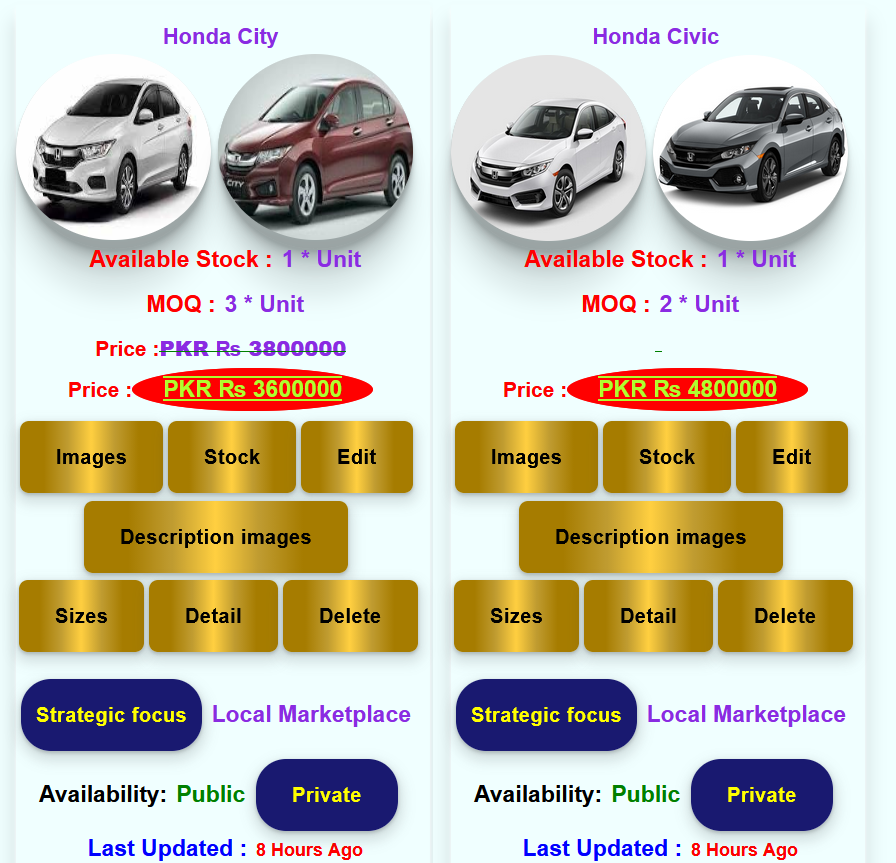
Product Management Actions
The seller can manage the live product through the following options in the
given sequence:
-
Stock
Seller can add and manage product stock quantity using the
"Stock" button. This allows the seller to maintain
available product quantity after the initial default stock assignment.
-
Edit
Seller can update existing product information using the
"Edit" button. This allows modification of available
product details according to business requirements.
-
Description Images
Seller can add additional product description images using the
"Description Images" button. These images provide
customers with more detailed product information and visual explanation.
-
Sizes
Seller can add and manage product size information using the
"Sizes" button. Size-related images and details can be
maintained according to product requirements.
-
Detail
Seller can view complete product information using the
"Detail" button. This provides a complete overview of
the product configuration and available information.
-
Delete
Seller can remove the product from the marketplace using the
"Delete" button according to system rules and permissions.
Live Product Management Flow
- Product becomes live on B2BC Market.
- Seller views the product from Seller Dashboard.
- Seller manages stock using the "Stock" button.
- Seller updates product information using the "Edit" button.
-
Seller adds additional product visuals using the
"Description Images" button.
- Seller manages product sizes using the "Sizes" button.
- Seller views complete product information using the "Detail" button.
- Seller can remove the product using the "Delete" button.
Seller Trial Period and Subscription-Based Product Management
B2BC Market provides every new seller with a trial period to explore the
marketplace features before selecting a subscription plan. During the trial
period, sellers can create and manage products within the allowed trial
product limit.
When a seller chooses a subscription plan, the seller receives expanded
marketplace access with unlimited product creation capability during the
active subscription period.
Trial Period Product Management
Every new seller account receives a predefined trial period. The trial period
allows sellers to understand the B2BC Market ecosystem before purchasing
a subscription.
Example
Trial Duration: 6 Months
Trial Product Limit: 10 Products
During the trial period, the seller can:
- Add products according to the trial product limit.
- Manage product information, images, stock, and branch details.
- Test marketplace features.
- Sell products according to marketplace rules.
Subscription-Based Unlimited Product Management
When a seller activates a subscription, the seller receives unlimited product
creation access during the active subscription period.
A subscription does not restrict the number of products a seller can add.
The seller can expand their product catalog according to business requirements.
Trial Account:
Limited Product Capacity
Active Subscription:
Unlimited Product Capacity
During an active subscription, the seller can:
- Add unlimited products.
- Create and manage large product catalogs.
- Expand business across multiple branches.
- Use full marketplace selling capabilities.
Subscription Expiration Process
When the subscription period ends, B2BC Market automatically reviews the
seller account status.
The system checks:
- Whether the seller still has remaining trial period.
- Current seller product count.
- Current account access level.
Example of Subscription Expiration
Seller receives a 6-month trial period.
Trial product limit: 10 Products.
Seller activates a 1-month subscription.
During subscription: Seller adds 100 products or more.
Subscription expires after 1 month.
Seller still has 4 months remaining trial period.
System returns account to trial product limit.
Product Adjustment After Subscription Expiration
After subscription expiration, if the seller has more products than the
remaining trial allowance, the system does not delete those products.
The system protects seller data by keeping products available in the seller
dashboard while controlling marketplace visibility according to the current
account status.
- Products within the allowed trial limit remain active.
- Additional products become unavailable for buyers.
- Seller can view and manage restricted products from the dashboard.
-
Seller can reactivate full product visibility by purchasing a new
subscription.
Seller Alert Notification
When subscription access changes, B2BC Market sends an alert message to the
seller explaining the account status.
Your subscription has expired.
Your account has returned to trial product capacity.
Products above the trial limit are currently unavailable for buyers.
Renew your subscription to restore unlimited product access.
Add Product Availability
The "Add Product" option is automatically controlled by the seller's current
account status.
-
During trial period: Seller can add products until reaching the trial limit.
-
During active subscription: Seller can add unlimited products.
-
After subscription expiration: Seller cannot add additional products if
the trial product limit has been reached.
-
Seller can upgrade subscription or remove products to continue managing
within trial limits.
Smart Seller Capacity Management
B2BC Market provides flexible growth opportunities for sellers. New sellers
can start with a limited trial environment, while growing businesses can
unlock unlimited product management through subscription.
The system automatically manages account permissions, protects seller data,
and ensures that buyers receive products from active and authorized sellers.
Intelligent Product Visibility Management
B2BC Market provides sellers with complete control over product visibility.
Sellers can manually manage their products by updating information, changing
availability, editing details, managing stock, or removing products according
to their business requirements.
Along with seller control, B2BC Market also uses an intelligent product
monitoring system that automatically checks product activity and marketplace
health on a regular basis.
Automatic Product Activity Monitoring
The system continuously monitors product activity to ensure that buyers only
see active and reliable products. The monitoring process checks whether a
product has received any updates or business activity.
Product activity can include:
- Price updates
- Product information editing
- Stock updates
- Product availability changes
- Product image updates
- Other seller actions related to the product
Product Visibility Rules
After Two Months Without Activity
If a product remains unchanged and no seller activity is performed for
approximately two months, the system automatically removes the product from
marketplace visibility.
The product is not deleted at this stage. It remains safely available in the
seller dashboard, allowing the seller to review, update, and reactivate the
product whenever required.
After One Year Without Activity
If a product remains inactive, unchanged, and unavailable in the seller
dashboard for approximately one year, the system permanently removes the
product from B2BC Market.
This ensures that the marketplace remains clean, updated, and focused on
active products while reducing outdated information for buyers.
Product Lifecycle Flow
Product Created
↓
Product Available on Marketplace
↓
System Monitors Product Activity
↓
No Activity for 2 Months
↓
Product Hidden From Buyers
(Available in Seller Dashboard)
↓
No Activity for 1 Year
↓
Product Removed From System
Benefits of Intelligent Visibility Management
- Buyers see more active and reliable products.
- Sellers maintain better product quality.
- Outdated products do not reduce marketplace trust.
-
Sellers keep control because hidden products remain available in their
dashboard before final removal.
Smart Marketplace Balance
B2BC Market combines seller control with intelligent automation. Sellers decide
their product strategy, while the system helps maintain marketplace quality by
automatically managing inactive products.
Seller Mode - Branch Product Management
B2BC Market allows sellers to manage product availability across multiple
business branches. From the Seller Dashboard, the seller can access
"Branch Product Management" to assign products to different
branches and control branch-specific product settings.
Product Assignment to Branches
A seller can assign an existing product to one or multiple branches. When a
product is assigned to a branch, the product's general rules are automatically
applied as the default settings for that branch.
The seller can then customize specific rules for each branch according to
business requirements.
Branch-Specific Product Rules
Each branch can have its own product configuration while maintaining the same
main product identity.
Seller Can Customize
-
Product Price
Seller can set different prices for the same product in different branches.
-
Product Availability
Seller can control whether the product is available or unavailable in
each specific branch.
-
Marketplace Strategic Focus
Seller can define product visibility strategy for each branch.
- Local Marketplace
- Global Marketplace
- Both Marketplaces
-
Delivery Options
Seller can configure delivery availability and options according to each
branch's operational capability.
-
Available Countries
Seller can define the countries where the product will be available from
each branch.
Branch Product Management Rules
- One product can be assigned to multiple branches.
- Each branch can maintain its own product rules.
- General product information remains the same across all branches.
-
Branch-specific settings override general product rules where applicable.
-
Customers can view available branches according to marketplace visibility
and location settings.
Branch Product Management Flow
- Seller opens Seller Dashboard.
- Seller selects "Branch Product Management".
- Seller selects a product to assign to branches.
- Seller selects one or multiple branches.
- System applies product general rules to selected branches.
- Seller modifies branch-specific rules if required.
-
Seller updates price, availability, marketplace strategy, delivery options,
and available countries.
-
Product becomes available through selected branches according to branch
configuration.
B2BC Market Strategic Focus Engine
B2BC Market determines product availability by evaluating three elements:
1. Product Strategic Focus
Local Marketplace or Global Marketplace
2. Branch Location
Country where the product is offered.
3. Buyer Location
Current browser location of the buyer.
Buyer Opens B2BC Market
↓
System Detects Buyer Country
↓
System Detects Branch Country
↓
System Checks Product Strategic Focus
↓
Local Marketplace
Buyer Country = Branch Country
✓ Product Available
Buyer Country ≠ Branch Country
✕ Product Hidden
Global Marketplace
Buyer Country ≠ Branch Country
✓ Product Available
Buyer Country = Branch Country
✕ Product Hidden
Scenario Example 1
Buyer and Branch in Same Country
Branch Location: Country A
Buyer Location: Country A
LOCAL PRODUCT
Available
GLOBAL PRODUCT
Hidden
Scenario Example 2
Branch Location Changed
Old Branch Location: Country A
New Branch Location: Country B
Buyer Location: Country A
LOCAL PRODUCT
Hidden
GLOBAL PRODUCT
Available
Product Strategic Focus: Seller Understanding
Product Strategic Focus: Control Where Your Product Sells
B2BC Market allows sellers to define the market strategy for each individual
product. Strategic Focus helps sellers decide whether a product should target
local buyers, international buyers, or both.
Local Marketplace
Purpose
Sell products within the branch's local country.
How It Works
-
The system compares the buyer location with the assigned branch location.
-
If the buyer and branch are located in the same country, the product becomes
available.
-
If the buyer and branch are located in different countries, the product is
hidden.
Example
A branch is located in Pakistan.
A seller assigns Product A as Local Marketplace.
- Buyer in Pakistan → Product Visible
- Buyer in UAE → Product Hidden
Suitable For
- Local delivery businesses
- Local services
- Products with country-specific availability
- Businesses focusing on nearby customers
Global Marketplace
Purpose
Sell products internationally through cross-country marketplace visibility.
How It Works
-
The system compares buyer location with the assigned branch location.
-
If the buyer and branch are located in different countries, the product
becomes available through the Global Marketplace.
-
If the buyer and branch are located in the same country, the product is
hidden because the product is focused on international marketplace reach.
Example
A branch is located in Pakistan.
A seller assigns Product B as Global Marketplace.
- Buyer in Pakistan → Product Hidden
- Buyer in UAE → Product Visible
Suitable For
- Export products
- International trade
- Cross-border sellers
- Products designed for foreign markets
Both Marketplaces
Purpose
Target both local and international buyers.
How It Works
-
The product follows both Local Marketplace and Global Marketplace rules.
-
Local buyers can discover the product through the Local Marketplace.
-
International buyers can discover the product through the Global Marketplace.
Example
A branch is located in Pakistan.
A seller assigns Product C as Both Marketplaces.
- Buyer in Pakistan → Product Visible
- Buyer in UAE → Product Visible
Suitable For
- Popular products
- Products with wide availability
- Sellers who want maximum market exposure
Seller Decision Guide
Choose Product Strategy
↓
Local
Same country between buyer and branch.
Best for local sales.
Global
Different country between buyer and branch.
Best for international sales.
Both
Local + Global visibility.
Best for maximum reach.
Final Seller Understanding
B2BC Market allows sellers to control the market strategy of every individual
product. A seller can decide whether each product should focus on local buyers,
international buyers, or both markets.
Strategic Focus gives sellers flexibility to manage different products with
different business goals while operating under the same company and branch
structure.
Precision Product Visibility Control
B2BC Market provides sellers with advanced control over where and how their
products appear in the marketplace. Sellers can define product visibility rules
according to their business strategy, branch capability, delivery area, and target
customers.
This intelligent control prevents products from being displayed in locations where
the seller does not want to operate, reducing unnecessary inquiries and allowing
buyers to discover only relevant products.
By combining seller-defined marketplace rules with intelligent search technology,
B2BC Market creates a balanced ecosystem where sellers receive more meaningful
customer interactions and buyers receive more accurate search results.
The seller does not only upload products; the seller creates a structured product
availability strategy. This allows the marketplace search engine to deliver closer,
faster, and more relevant results for every buyer.
Buyer Business Model Selection
B2BC Market allows buyers to choose their preferred purchasing model before
searching products. Buyers can select between B2B, B2C, and B2BC marketplaces
according to their buying requirements.
When a buyer selects B2B, the search engine displays only products offered under
B2B business rules. When a buyer selects B2C, only consumer-focused products are
displayed. When a buyer selects B2BC, only products available through the combined
business-to-business and business-to-consumer model are displayed.
This intelligent filtering connects buyers with the right sellers and reduces
irrelevant search results. Sellers receive inquiries from customers who match their
business model, while buyers discover products that fit their purchasing purpose.
Switch to Nearby Products
B2BCMarket provides an intelligent nearest product discovery system that helps
buyers find the closest available products according to their selected geographic
location.
B2BC Market allows buyers to switch their search results to nearby products based
on their selected geographic location. This feature does not work as a fixed radius
restriction where products outside a specific distance are simply removed.
Unlike traditional radius searches that only display products within a fixed
distance, B2BCMarket automatically identifies and ranks available products based
on actual distance from the buyer's selected location.
The selected geographic area works as a search reference point. If the buyer selects
a small area such as a town, the nearest available products may be within a short
distance. If the buyer selects a larger area such as a district, province, or another
region, the system still finds and displays the closest available products, even when
the distance is larger.
For example, when a buyer selects a district where no nearby branch exists, B2BCMarket
does not simply show "No product available." Instead, the system searches eligible
marketplace offers and displays the nearest available products according to distance
ranking.
This intelligent approach ensures that buyers always receive meaningful product
options while allowing sellers to reach buyers according to their actual marketplace
availability, delivery capability, and location strategy.
Flexible Product Sorting
B2BC Market allows buyers to control how search results are displayed. After
performing any search, buyers can switch between different product sorting modes
according to their preference.
The "Switch to Nearby Products" option sorts available products according to distance
from the buyer's selected geographic location. It does not remove products based on a
fixed radius. Instead, it prioritizes the closest available products first while
keeping all other search conditions active.
The "Switch to Random Products" option changes the product display order to provide
a different discovery experience while maintaining the same search requirements.
The selected sorting option remains active during the buyer's current browsing
session and continues applying to search results until the page is refreshed or
reloaded.
This approach gives buyers more control over product discovery while allowing B2BC
Market to maintain accurate marketplace matching between buyers and sellers.
Intelligent Product Targeting
B2BCMarket is more than a product listing platform. Sellers can define how and where
their products should be discovered by selecting business model, marketplace strategy,
location availability, and branch rules.
Instead of showing products to everyone, B2BCMarket connects products with the most
relevant buyers. This helps sellers reduce unwanted inquiries and reach customers who
match their selling conditions.
B2BCMarket transforms product listing into intelligent product positioning by helping
the right products reach the right audience naturally.
Intelligent Product Discovery and Targeted Marketplace Matching
B2bcmarket is not just a product listing platform. It is an intelligent marketplace
system where sellers define how, where, and to whom their products should be available.
Sellers can control product visibility through business model selection, marketplace
strategy, branch availability, location rules, delivery options, and other product
conditions. These rules help products reach the buyers who are actually suitable for them.
B2bcmarket does not simply display products; it matches buyer requirements with
seller-defined product availability. Buyers receive more relevant search results based
on product type, purchasing model, location, availability, and seller capability.
By combining seller-controlled product positioning with intelligent search technology,
B2bcmarket reduces irrelevant product exposure, improves buyer discovery, and creates
more meaningful connections between sellers and buyers.
Company Personnel Structure and Business Identity
B2bcmarket allows companies to display their complete organizational structure so
buyers can better understand the people and departments behind a business.
Companies can create a professional personnel tree including management, supervisors,
technicians, sales officers, and other team members. Each person can have their profile
image, designation, social media profiles, and contact information displayed according
to company settings.
This feature helps buyers identify the right person for communication, support, sales
inquiries, or technical assistance. It creates more transparency and builds stronger
trust between companies and buyers.
B2bcmarket connects not only products and businesses but also the people responsible
for delivering those products and services.
Context-Aware Product Refinement
After selecting the desired Category, Subcategory, Company, and Branch filters,
buyers may optionally refine the product list using the Find Product field. The search
is context-aware and searches only within the currently eligible products. Depending
on the selected subcategory, buyers can search by brand, model, size, capacity,
wattage, series, or other relevant product attributes. If the field is left empty,
B2bcmarket displays all eligible Master Products.
B2bcmarket Offering Type Based Commerce Behavior
1. Overview
-
B2bcmarket supports multiple types of business offerings using a single
marketplace structure.
-
An offering displayed in a product card can represent:
- Physical Product
- Digital Product
- Service
-
The system behavior, including buyer action buttons and order flow, is controlled
by the Offering Type.
-
The Offering Type is defined at the Subcategory level because the nature of the
business offering is determined by the selected subcategory.
2. Purpose
-
Allow B2bcmarket to support product sales, digital downloads, and professional
services within one marketplace.
-
Avoid creating separate marketplace systems for products and services.
-
Provide automatic buyer actions based on the type of offering.
-
Keep seller data entry simple by controlling commerce behavior from the
marketplace structure.
3. Offering Type Attribute
-
A new attribute is added to the Subcategory table:
-
Available Offering Type values:
-
Physical Product
- Items that can be purchased and physically delivered.
- Examples: Car, Motorcycle, Solar Panel, Machine.
-
Digital Product
- Products that are delivered electronically.
- Examples: Software License, CAD Template, Digital Document.
-
Service
-
Professional or business services that require communication,
quotation, or agreement.
-
Examples: Chemical Engineer, Consulting Service, Installation Service.
4. Subcategory Level Control
- Offering Type is not stored as a Product attribute.
-
The same product structure can support different industries.
-
The selected Subcategory automatically determines:
- Available buyer action button.
- Purchase workflow.
- Delivery or service behavior.
5. Physical Product Behavior
-
Offering Type:
Physical Product
-
Buyer Action:
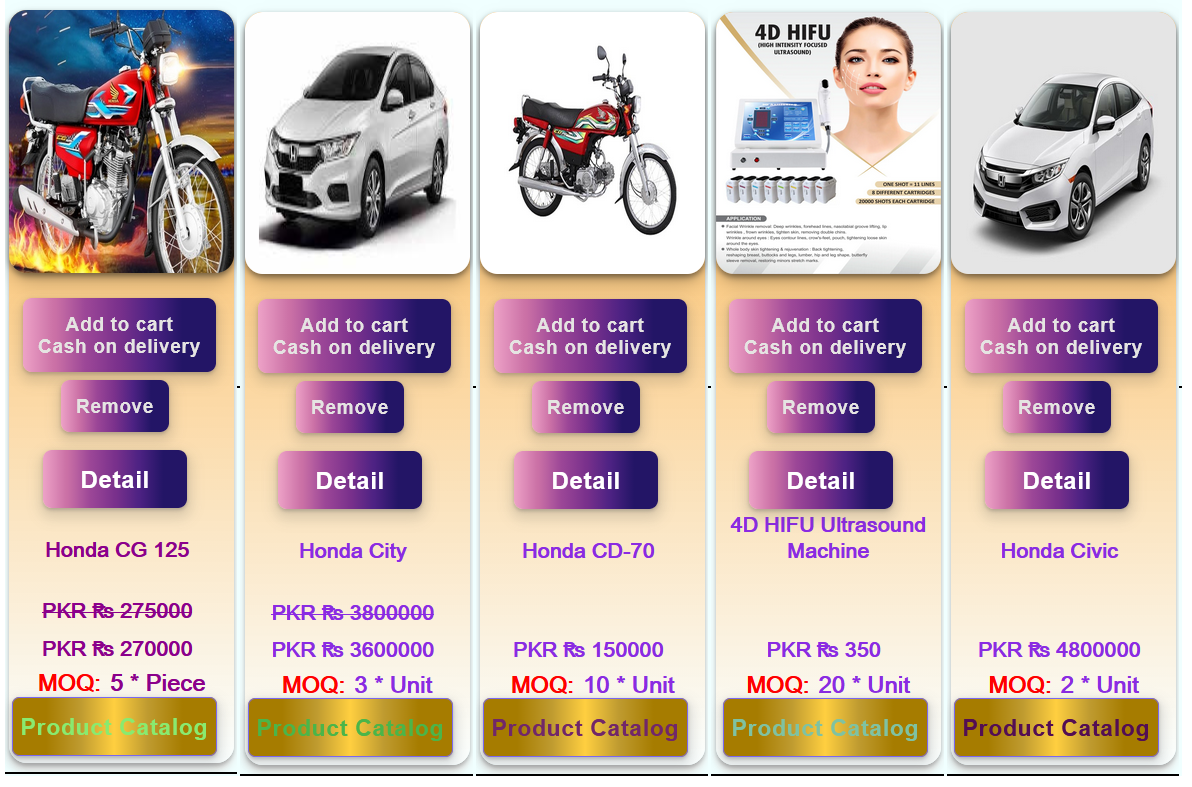
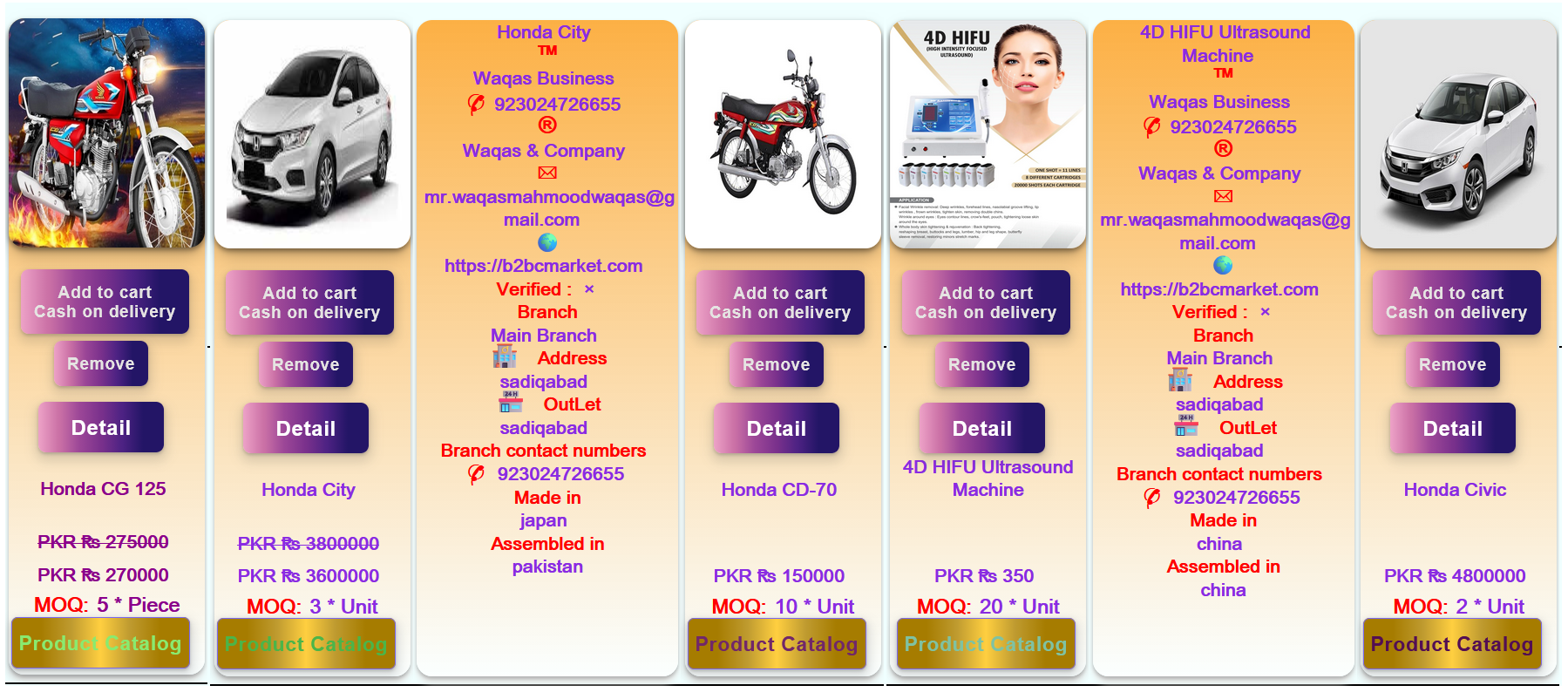
Add to Cart
-
Suitable for:
- Products with inventory.
- Products requiring delivery.
- Products that can be ordered in quantity.
-
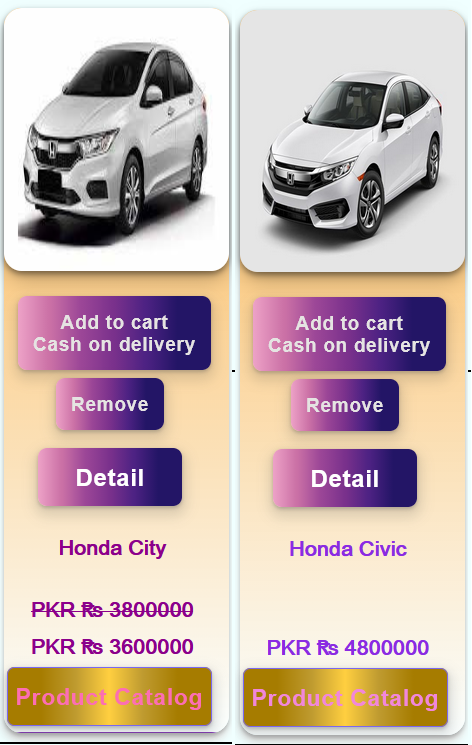
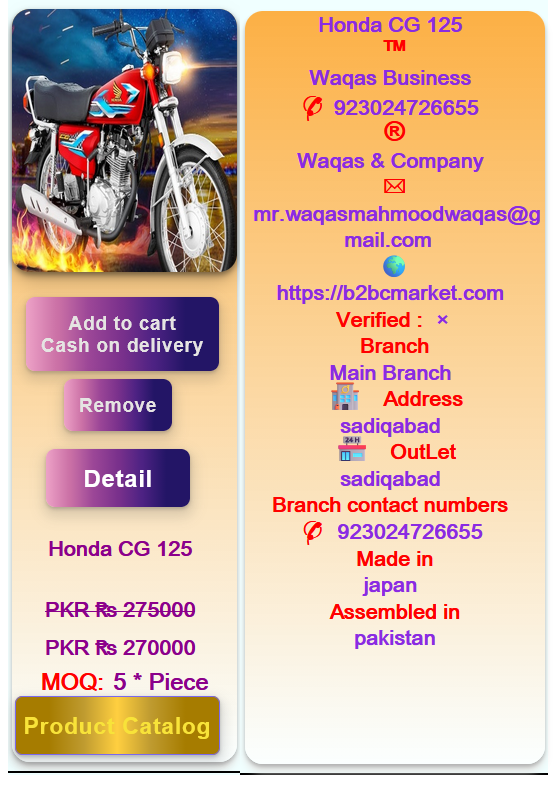
Examples:
- Car
- Motorcycle
- Solar Panel
- Industrial Equipment
-
Order process:
- Add to Cart
- Checkout
- Delivery Process
- Order Completion
6. Digital Product Behavior
-
Offering Type:
Digital Product
-
Buyer Action:
Buy Now / Download
-
Suitable for:
- Downloadable products.
- Electronic delivery.
- Digital access products.
-
Examples:
- Software License
- Design Template
- Digital Document
- Online Resource
-
Order process:
- Purchase
- Payment Confirmation
- Download or Digital Access
7. Service Behavior
-
Offering Type:
Service
-
Buyer Action:
Request Service / Contact Seller
-
Suitable for:
- Professional services.
- Consulting.
- Installation and support services.
-
Examples:
- Chemical Engineer
- Engineering Consultant
- Repair Service
- Training Service
-
Service process:
- Buyer sends request.
- Seller responds.
- Quotation or agreement is created.
- Service is completed.
8. Product Card Button Logic
-
The frontend reads the Offering Type value from the loaded product data.
-
Button behavior:
-
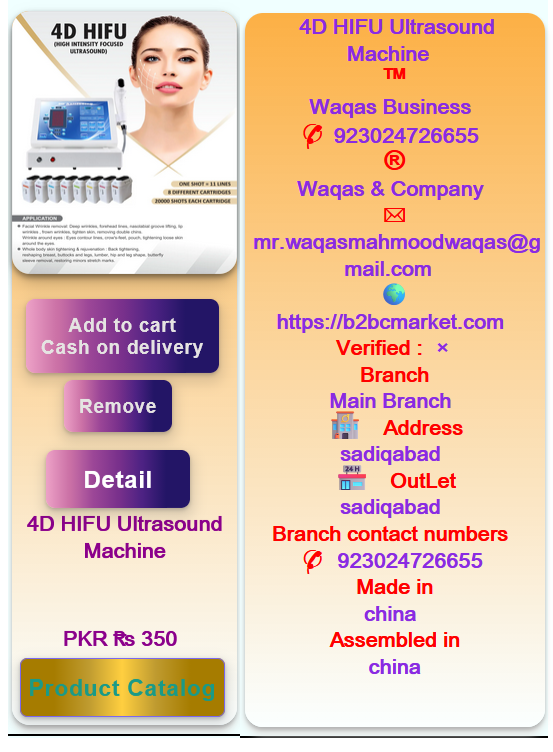
If OfferingType = Physical Product:
Show Add to Cart button
-
If OfferingType = Digital Product:
Show Buy Now / Download button
-
If OfferingType = Service:
Show Request Service button
9. Advantages
-
One marketplace architecture supports products, digital items, and services.
-
Sellers do not need to configure button behavior manually.
-
Buyers see the correct action based on the offering type.
-
The system remains scalable for different industries.
-
Future offering types can be added without changing the complete marketplace design.
10. Future Expansion Possibilities
-
Additional Offering Types may be introduced later:
- Subscription
- Rental
- Booking
- Membership
-
Existing product, company, branch, and catalog structures can continue to work
with new offering types.
11. Design Principle
- Category defines classification.
- Subcategory defines commerce behavior through Offering Type.
- Product Card displays the offering.
- Offering Type controls buyer action and workflow.
Dynamic Buyer Search Engine
-
Geographic Marketplace is the starting point of every buyer search.
It defines the search area such as Global, Country, State, City, or Local Marketplace.
-
After selecting the marketplace, the buyer can choose one of two search patterns.
-
Pattern 1 (Category-Based Search) starts with Categories,
then Subcategories, followed by Companies and Branches.
-
Pattern 2 (Company-Based Search) starts with All Companies,
then All Branches, followed by Categories and Subcategories.
-
Both search patterns use the same Dynamic Marketplace Engine
to process the buyer's selections.
-
The Dynamic Marketplace Engine automatically filters data based on the selected
Geographic Marketplace and the buyer's search path.
-
Only matching Companies, Branches, Categories, Subcategories, and Products are displayed.
-
This intelligent search helps buyers quickly discover relevant products and suppliers
without viewing unnecessary or unavailable results.
Buyer Search Pattern 1
-
Pattern 1 (Category-Based Search) starts with
All Categories and All Subcategories
selected by default.
-
The buyer can browse products by selecting a Category and then a Subcategory.
-
After selecting a Category or Subcategory, the system automatically displays
only the Companies and Branches that offer those products.
-
If the buyer is in the Global Marketplace, products are shown
from all companies and branches worldwide.
-
If the buyer switches to a specific
Country, State, City,
or Local Marketplace
, only products available in that geographic area
are displayed.
-
Only Companies, Branches, and Products that match the selected Category
and Subcategory are shown.
-
This intelligent filtering helps buyers quickly find suppliers offering
the products they need.
Buyer Search Pattern 2
-
Pattern 2 (Company-Based Search) starts with
All Companies and All Branches
selected by default.
-
The buyer does not need to select a company or branch to start browsing products.
-
The displayed Categories are generated dynamically from
the products available in the current geographic marketplace.
-
If the buyer is in the Global Marketplace, categories are
collected from all companies and all branches worldwide.
-
If the buyer switches to a specific
Country, State, City,
or Local Marketplace
, only categories available in that area are displayed.
-
After selecting a company or branch, the category list is automatically refreshed
to show only categories available for that selection.
-
The Subcategories are also generated dynamically based on
the selected Company, Branch, and Category.
-
Only products that match the selected Geographic Marketplace, Company, Branch,
Category, and Subcategory are displayed.
-
This intelligent filtering prevents buyers from seeing empty categories
or products that are not available.
-
The entire navigation is based on real product availability,
making product discovery faster, simpler, and more accurate.
Difference Between Global Marketplace and In-Country Marketplace
-
Global Marketplace allows buyers to search across the worldwide
marketplace. When a company is selected, all branches of that company from all
countries are considered, and products from those branches are displayed.
-
In-Country Marketplace limits the search to a selected country.
When a company is selected, only branches of that company within that specific
country are considered, and products from those branches are displayed.
-
The main difference is the geographic boundary:
-
Global Marketplace:
Company → All Worldwide Branches → Products
-
In-Country Marketplace:
Company → Country-Specific Branches → Products
B2BCMarket Seller Business Models
B2BCMarket provides multiple seller business models based on payment method,
platform dependency, website ownership, and seller management method.
-
Basic Platform-Dependent (Cash on Delivery)
- Status: Active
-
Product Card Button:
Add to Cart / Cash on Delivery
-
Payment Method:
Cash on Delivery
-
Website Address Required:
No
-
Seller Dashboard:
B2BCMarket Seller Dashboard
-
Description:
Seller sells products through the B2BCMarket marketplace.
Buyer places an order inside B2BCMarket and pays after delivery.
-
Basic Platform-Independent (Cash on Delivery)
- Status: Under Development
-
Product Card Button:
Independent Website / Cash on Delivery
-
Payment Method:
Cash on Delivery
-
Website Address Required:
Yes
-
Seller Dashboard:
B2BCMarket Seller Dashboard
-
Description:
Seller has a custom website. Buyer is redirected to the seller website
to place a COD order. Seller activities are managed through B2BCMarket.
-
Platform-Dependent (Online Payment)
- Status: Active
-
Product Card Button:
Add to Cart / Online Payment
-
Payment Method:
Online Payment
-
Website Address Required:
No
-
Stripe Account Required:
Yes
-
Seller Dashboard:
B2BCMarket Seller Dashboard
-
Description:
Buyer completes the purchase inside B2BCMarket.
Payment is processed through the platform online payment system.
-
Partially Platform-Dependent (Online Payment)
- Status: Under Development
-
Product Card Button:
Independent Website / Online Payment
-
Payment Method:
Online Payment
-
Website Address Required:
Yes
-
Stripe Account Required:
Yes
-
Seller Dashboard:
B2BCMarket Seller Dashboard
-
Description:
Seller has a custom website where buyers complete purchases.
Seller still manages products, orders, and business activities
from the B2BCMarket Seller Dashboard.
-
Platform-Independent (Online Payment)
- Status: Under Development
-
Product Card Button:
Independent Website / Online Payment
-
Payment Method:
Online Payment
-
Website Address Required:
Yes
-
Stripe Account Required:
Yes
-
Seller Dashboard:
Seller Dashboard inside Custom Website
-
Description:
Seller operates a complete independent website.
Seller can manage products and business activities directly
from the custom website dashboard.
-
Revenue Sharing (Online Payment)
- Status: Under Development
-
Product Card Button:
Independent Website / Online Payment
-
Payment Method:
Online Payment
-
Website Address Required:
Yes
-
Stripe Account Required:
Yes
-
Seller Dashboard:
According to selected seller business model
-
Description:
A revenue-sharing domain can display the complete B2BCMarket platform.
Sellers registering through this domain are connected to the revenue-sharing
relationship. The domain owner receives a subscription revenue share
for as long as B2BCMarket continues to exist.
Business Model Switching
-
Sellers can change their business model selection without restriction.
-
Changing the business model changes the product card behavior,
website behavior, payment flow, and seller management method.
-
Revenue Sharing mode allows the seller domain to operate as a B2BCMarket
marketplace access point.
-
Switching back to another business model changes the domain behavior
according to the selected model.
Product Selection and Cart Management
-
Buyers can browse products from multiple sellers and add selected products
to their cart.
-
Registered buyers can continue their shopping journey even after leaving
B2BCMarket and returning later.
-
Before checkout, B2BCMarket verifies product availability and displays
the latest product information.
-
A single cart can contain products from multiple sellers.
Cart Payment Classification
-
B2BCMarket automatically separates cart products according to their
available payment method.
-
The cart displays two separate sections:
- Cash on Delivery (COD) Products
- Online Payment Products
-
Both COD and Online Payment products can exist together in the same cart.
Checkout Process
-
The buyer can choose checkout according to the product payment type.
-
COD Checkout processes only Cash on Delivery products.
-
Online Payment Checkout processes only online payment products.
-
If the selected checkout type has no matching products, B2BCMarket displays
a message informing the buyer that no products are available for that payment method.
Order and Suborder Creation
-
After checkout, B2BCMarket creates an Order ID representing the buyer's complete purchase.
-
Each seller involved in the purchase receives a separate Suborder ID.
-
One Order ID can contain multiple Suborder IDs.
-
Order ID belongs to the buyer.
-
Suborder ID belongs to the seller.
Buyer Order Management
-
Buyers can view their complete purchase using the Order ID.
-
All seller Suborders are displayed under the related Order ID.
-
Buyers can monitor each Suborder separately because different sellers
may have different progress stages.
Seller Suborder Management
-
Sellers receive and manage only their own Suborder details.
-
Sellers can accept or process their assigned Suborders.
-
Sellers can cancel products or a Suborder before accepting it.
-
After accepting a Suborder, the seller cannot cancel that Suborder.
Product-Level Cancellation
-
Buyers can cancel individual products from each Suborder through
their Order Dashboard.
-
Sellers can cancel individual products from their Seller Dashboard
according to their allowed cancellation stage.
-
Product-level cancellation allows buyers and sellers to modify a purchase
without cancelling the complete Order or Suborder.
-
Example:
-
A buyer places an order containing 10 products.
-
The buyer decides to keep only 3 products.
-
The buyer can cancel the unwanted products individually while
keeping the selected products active.
Automatic Suborder Cancellation
-
A Suborder remains active as long as at least one product remains available.
-
If product cancellation reduces the active products inside a Suborder
to less than one, the complete Suborder is automatically cancelled.
-
A cancelled Suborder will not continue to delivery or payment processing.
Delivery Verification
-
Each Order and Suborder has a unique identification system connecting
the buyer, seller, and delivery process.
-
After receiving a package, the buyer can verify the Suborder through B2BCMarket.
-
B2BCMarket verifies the relationship between the Order and Suborder information.
-
If verification is successful, delivery confirmation is completed.
-
If verification fails, the buyer can try the confirmation process again.
Payment Management
-
Online Payment Suborders follow the online payment settlement process
after successful completion of required delivery confirmation.
-
COD Suborders follow the Cash on Delivery process.
-
Each seller receives payment according to their individual Suborder.
Order Completion
-
A single Order ID can contain multiple Suborders with different sellers
and different completion times.
-
Buyers maintain one complete purchase history through their Order ID.
-
Sellers manage only their own Suborders.
-
Each Suborder can complete independently while remaining connected
to the buyer's main Order.
B2BCMarket Independent Platform Domain Lifecycle Rule
Purpose
B2BCMarket supports a multi-tenant marketplace architecture where sellers
can operate either through the B2BCMarket marketplace domain or through
their own independent business domain.
To manage independent domains correctly, B2BCMarket follows a controlled
domain lifecycle process:
- Domain Registered
- Domain Connected
- Domain Active
Each stage has a different meaning and purpose. These stages should not
be treated as the same status.
1. Domain Registered
A domain is considered Registered when the domain name
exists with a recognized domain registrar.
Example:
- Domain Name: sellerdomain.com
- Status: Registered
B2BCMarket checks:
- The domain name exists.
- The domain registration information is available.
- The domain has not expired.
Registered means:
"This domain exists."
This status does not mean:
- The domain is connected to B2BCMarket.
- The seller catalog is available through this domain.
- The seller has an active independent platform.
2. Domain Connected
A domain becomes Connected when the domain DNS configuration
is updated to point toward B2BCMarket infrastructure.
The seller must update the nameserver settings from the domain registrar
account using the current B2BCMarket nameserver information provided during
the business model selection process.
B2BCMarket verifies:
- The DNS configuration is pointing correctly.
- Requests from the domain can reach B2BCMarket servers.
- The domain can be mapped with the correct seller account.
Connected means:
"This domain is technically connected to B2BCMarket infrastructure."
At this stage:
- The domain can reach B2BCMarket.
- The application can identify the seller tenant.
- Seller-specific data can be loaded.
However, the domain is not publicly active until the activation process is completed.
3. Domain Active
A domain becomes Active when B2BCMarket completes domain
mapping and allows the seller business catalog to be publicly served.
Example:
-
https://sellerdomain.com/Catalogs/Catalog/business-catalog-id
When a domain becomes active, B2BCMarket enables:
- Seller branded public URLs.
- Dynamic canonical URLs.
- Dynamic Open Graph metadata.
- Seller business catalog access.
- Seller product catalog access.
- Seller business images and branding.
Active means:
"B2BCMarket accepts traffic through this domain and serves the seller catalog."
Domain Lifecycle Flow
Seller Adds Domain
        |
        ▼
Domain Registration Check
        |
        ▼
Domain Registered
        |
        ▼
Seller Updates Nameserver
        |
        ▼
DNS Verification
        |
        ▼
Domain Connected
        |
        ▼
Seller Catalog Mapping
        |
        ▼
Domain Active
Important Business Rule
B2BCMarket distinguishes between domain registration, domain connection,
and domain activation.
-
Domain Registered:
The domain exists with a domain registrar.
-
Domain Connected:
The domain DNS points to B2BCMarket infrastructure.
-
Domain Active:
B2BCMarket has mapped the domain and is serving the seller business.
Development Principle
Seller domain information should only be used for public identity after
the domain reaches the Active stage.
Active seller domains can be used for:
- Public URLs.
- Canonical URLs.
- Open Graph metadata.
- Seller branding.
- Business Catalog sharing.
- Product Catalog sharing.
Before activation, B2BCMarket should continue using the default marketplace identity.
Real Business Structure
-
Real Business Structure
B2BCMarket is designed according to real-world business operations.
A Seller or Business can manage multiple companies, each company can
manage multiple branches, and each branch can offer its own products.
-
Business to Product Relationship
In B2BCMarket, products are not treated only as standalone items.
A product becomes available in the marketplace through its connection
with a specific company and branch.
-
Multi-Company Management
A single business can operate multiple companies under one B2BCMarket
account while maintaining separate company identities and product management.
-
Multi-Branch Operations
Each company can manage multiple branches with their own locations,
including city, district, province, and country information.
-
Company, Branch, and Product Sharing
B2BCMarket provides dedicated sharing identities for companies, branches,
and products so businesses can easily promote their presence through
web links and other marketing channels.
-
Location-Based Business Identity
Branches represent real operating locations of a company. Customers can
discover products based on the specific branch where the products are available.
-
Business Growth Support
As businesses expand from one location to multiple companies and branches,
B2BCMarket keeps their structure organized and connected.
-
Reliable Public Identity
B2BCMarket is designed to maintain reliable business identities even when
business information changes over time.